

Customer app
Order from your phone.
The Tropical CropSciences app for customers: browse products, place orders, follow deliveries and report payments — wherever you are.
For Android phones · Version 0.1.4 · 87 MB · Updated 3 Nov 2026
Unit labels, VAT totals, payments with proof, live orders, update check
Order in minutes
Your prices, every pack size, and your cart saved between visits.
Follow every order
See when it is approved, dispatched and delivered — the page updates by itself.
Pay and report it
See the account to pay into, copy it in one tap and attach a photo of your transfer.
Never miss an update
Notifications for orders, invoices and payments, and a prompt when a new version is out.
How to install
- 1Tap "Download for Android" on your phone.
- 2Open the downloaded file. If Android asks, allow installs from your browser.
- 3Tap Install, then sign in with the account Tropical gave you.
Already have the app? Download and install the new version the same way — your sign-in and cart are kept. The app tells you when a new version is out.
Don't have an account yet?
The app is for Tropical CropSciences customers. Ask your sales representative for your sign-in, or get in touch and we will set you up.
Request an account →Step-by-step guide
How to use the app
Everything you need to know — from signing in to placing your first order, paying, and tracking your delivery.
Sign in to your account
- Open the app and enter the customer code Tropical gave you.
- Enter your password. If this is your first time, you will be asked to set a new password.
- You are now signed in. The app remembers you until you sign out.
Tip: Keep your customer code safe. If you forget your password, contact your sales representative to reset it.
Browse products
- The Products tab shows every product available at your branch.
- Use the search bar to find a product by name, active ingredient or category.
- Tap a product to see its pack sizes, description and price.
- The price shown is your branch price — it may differ from the website's catalogue price.
Tip: Products are grouped by category: Herbicides, Insecticides, Fungicides, Fertilizers and more.
Place an order
- Tap the + button on any product to add it to your cart.
- Go to the Cart tab to review your items and change quantities.
- Tap "Place order" and choose how to pay: on credit or pay now by transfer.
- Your order goes to Tropical for approval. You will be notified once it is approved.
Tip: Your cart is saved between visits. You can add items over several days and order when ready.
Report a payment
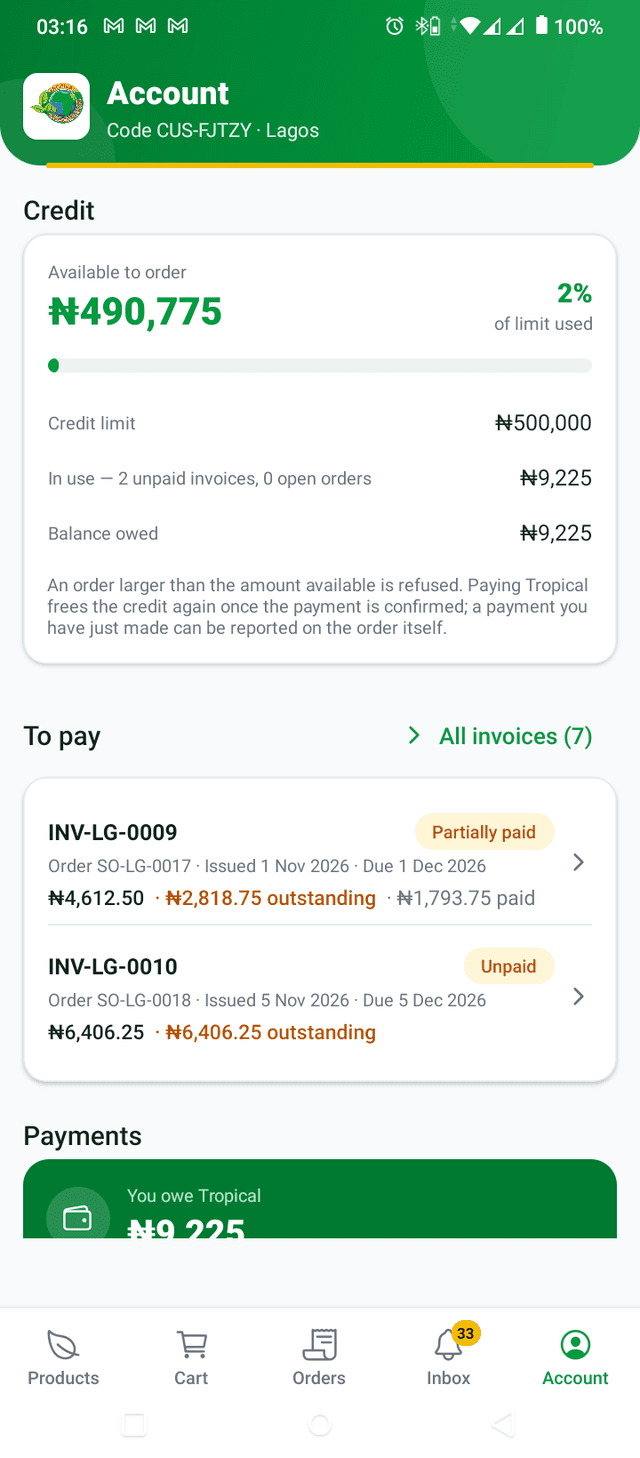
- Open the order or go to the Payments section on your Account tab.
- Tap "I have made a payment" and fill in the amount, payment method and bank reference.
- Optionally attach a photo of your bank transfer receipt as proof.
- Tap Send. Tropical's accounting team will confirm the payment.
- You will be notified once confirmed, and a receipt will be emailed to you.
Tip: Pay by bank transfer to the account shown on the payment screen. Copy the account number in one tap.
Track your delivery
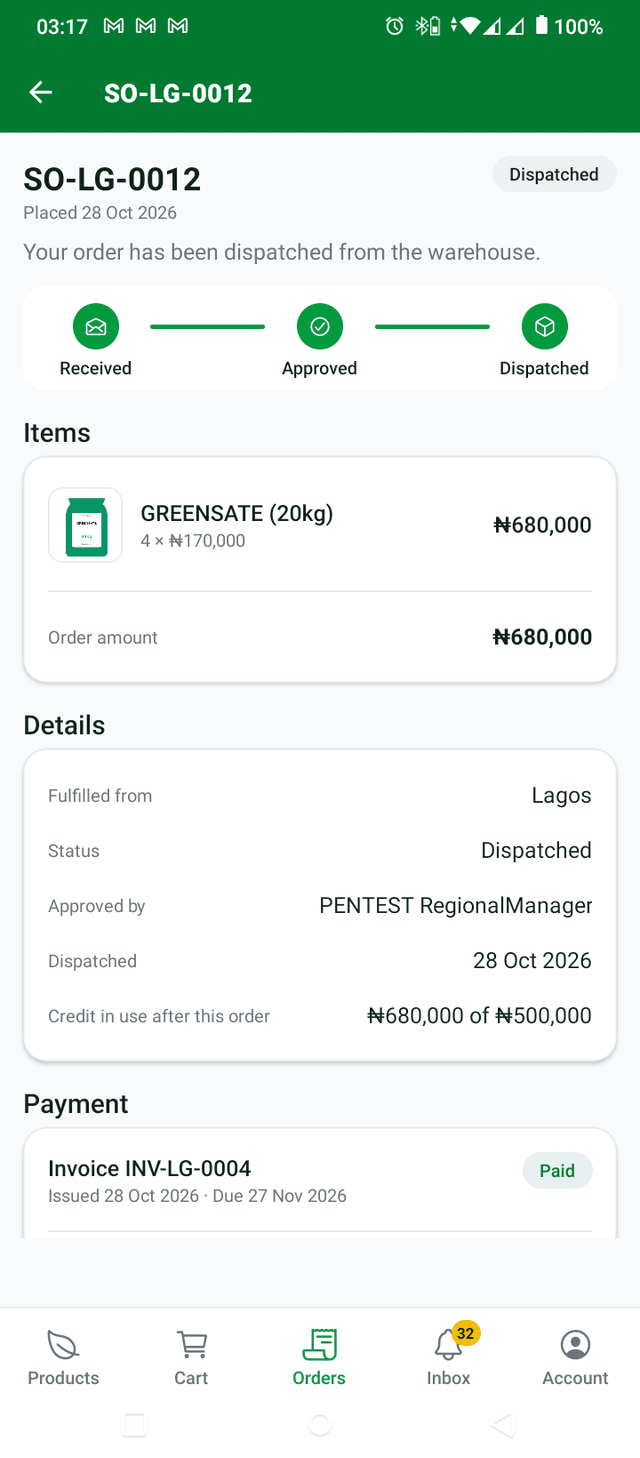
- Go to the Orders tab. Each order shows its current status at a glance.
- Tap an order for the full timeline: Placed → Approved → Dispatched → Delivered.
- You receive a notification at each stage — approval, dispatch, and delivery.
- When your order arrives, tap "Confirm Delivery" to complete the order.
Tip: Enable notifications so you never miss an update on your orders.
Stay updated
- The Notifications tab shows every update: orders, payments, and new app versions.
- Push notifications go to your phone so you know at once when something changes.
- When a new version of the app is available, you will be prompted to update.
Tip: Allow notifications when the app asks. You can change this in your phone's Settings at any time.
Common questions
App FAQ
- Your sales representative at Tropical gives you a customer code and a temporary password when your account is opened. If you don't have one yet, request an account on the website.
- The app is for existing Tropical customers. To browse products and prices without an account, use the website at tropicalcropsciences.com.
- Contact your sales representative or call Tropical. They will reset your password and send you a new temporary one.
- The app is currently available for Android. iPhone users can order on the website, which works on any device.
- Tropical confirms payments once the money appears in their bank account. If it has been more than 24 hours, contact your sales representative with your bank transfer reference.
Where do I get my customer code?
Can I use the app without an account?
What if I forget my password?
Is the app available for iPhone?
My payment was not confirmed. What do I do?
Ready to get started?
Download the Tropical CropSciences Customer App, sign in with your customer code, and place your first order today.